Body
Overview
This article will show instructors how to put a link to their Pearson courseware for the Inclusive Access program in their Brightspace course. If you have not already done so, add the VitalSource link first before adding your course material links.
Instructions
Step one: Set up Pearson Courseware
-
In your Brightspace course, click on the Content link located on the top navigation bar.

-
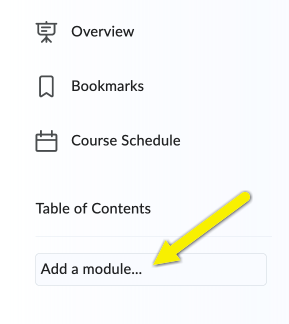
Click on the Add a Module… link located at the bottom of the left side navigation.
-
In the text box, enter Pearson Courseware.
-
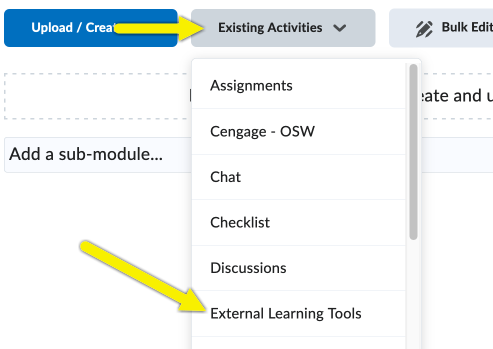
In the Pearson Courseware module, click on the Existing Activities menu, then select External Learning Tools.
-
In the Add Activity window, click on the Pearson link.

-
A link to the Pearson LTI 1.3 integration will be posted to the module. Your students can access the courseware using this link.

-
Use the link created in Step 6 to complete the courseware setup. When you click on it, you will be brought to a Pearson login screen.

-
After logging in, you can link your accounts. Use these Pearson support resources to assist with the process:
Step two: Launch the VitalSource tool
- Clicking the VitalSource link is what enables codeless access for your students and provides an opt-out option.
Step three: Optionally add an Inclusive Access Description
Optionally, you may add an access description for students so they understand the following:
-
What is Inclusive Access, and how will it be billed?
-
Link to Inclusive Access Support and/or information on how to opt out through the VitalSource link.
-
Who to contact if they get an error message or the link does not work. 
Need Help?
Need additional information or assistance? Contact CTS.